CALCULATE & UNDERSTAND · GUIDE
Not just the result. Also the calculation method.
An amount changes, a surcharge is added or a calculation step was wrong: the Jacktools calculator keeps an editable tape of your calculation. Correct earlier values and see how the following results change.
Open CalculatorVIEWS & SETTINGS
One tool, many views.
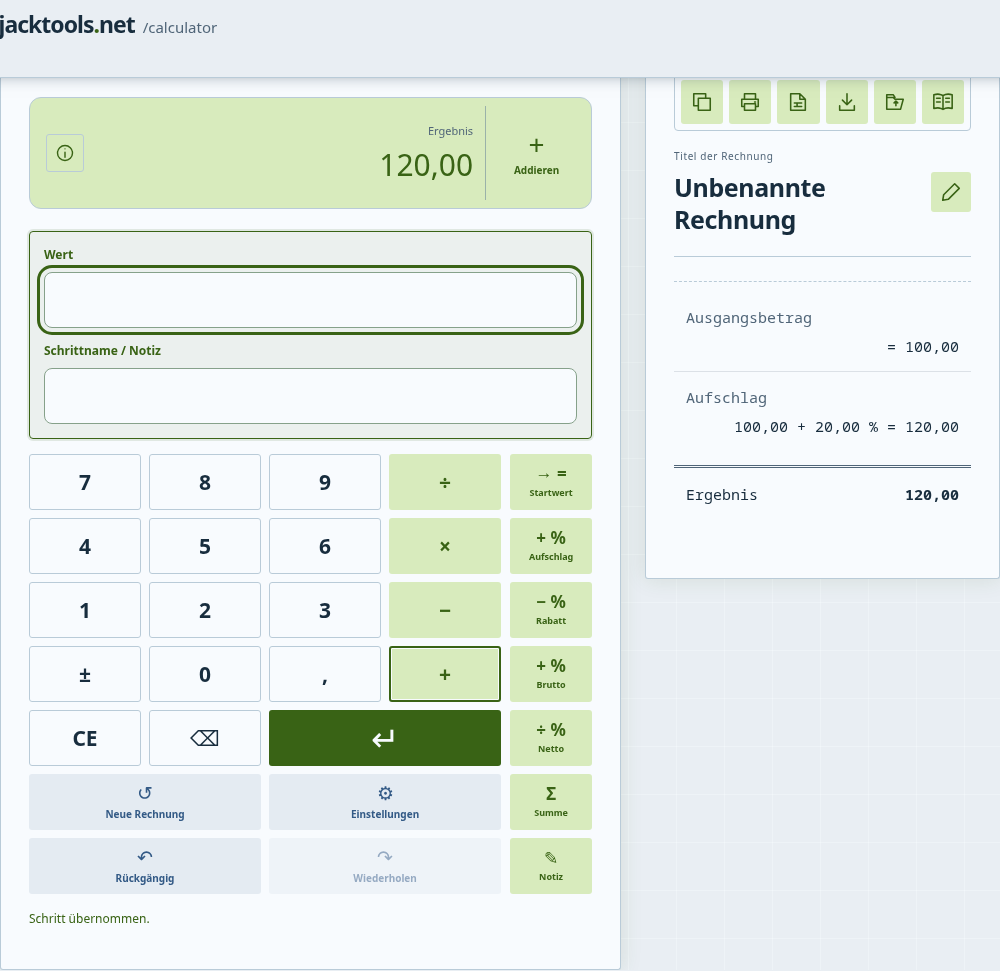
Explore different views and colour styles for Calculator. The screenshots come from the online app. Click any image to enlarge it.
The screenshots show the German-language interface. The explanations are translated.
GET TO KNOW THE TOOL
Calculator: the most important functions
Calculate step by step
Each active operation uses the previous result. This works like a desk calculator, not an algebraic expression with multiplication before addition.
Edit calculation path
Name, change, move or deactivate individual steps. Undo and redo help with corrections.
Files & Rounding
Choose the rounding you want and save important calculations as JSON. CSV and print/PDF are used for distribution.
Start with a clear calculation tape
Start with a starting value. Then you add operations that affect the last calculated result. Names and notes make it clear what an amount stands for. Subtotals and pure notes do not change the calculated value.
Order matters: 100 + 20 × 2 first produces 120, then 240. This calculator does not evaluate complete expressions using standard operator precedence. To reproduce such an expression, you need to plan the sequence yourself.
- Enter a starting value, add a name if necessary and confirm the step.
- Select the next arithmetic operation, enter its value and confirm again.
- Check the resulting stripe. Add meaningful names instead of uncommented numbers.
- Edit incorrect steps directly instead of retyping the entire calculation.
Percentages, surcharges and taxes included
Percentage increases and discounts always refer to the current result. Two consecutive changes are therefore not simply added together. You can also use the special keys to add a tax amount or deduct a tax that is already included.
You enter the tax rate. The tool does not determine which rate applies to an operation. It is not tax advice and does not automatically generate a complete invoice.
Compare variants without losing the origin
You can edit, insert, move and delete individual steps. The switch on each step temporarily disables it. Following active steps then calculate without it, while the original value stays available for later comparison.
Undo and redo refer to changes to the calculation. A change to the calculation title can also be reversed. The built-in sample calculations explicitly contain fictitious values and can serve as an editable introduction.
If a step produces an error, the subsequent results are also invalid. Correct, disable, or remove the operation in question. A later new starting value does not circumvent the error.
Choose rounding and backups carefully
By default, only the display is rounded; Internally, the tool calculates with exact fractions. Optionally, each calculation step can be rounded to the set number of decimal places. This can result in different results: 1 ÷ 3 × 3 results in 1.00 without intermediate rounding, but with rounding each step to two places it results in 0.99.
Saving the current calculation is a separate option and is turned off by default. It is independent of saving the design. Without backup, calculations will be lost when reloading or changing languages. Data stored locally is tied to this browser and is not a backup.
Export important work as JSON if you want to edit it again later. CSV is suitable for spreadsheet processing, and print/PDF provides a readable calculation tape. Before sharing, check the rounding rules and remember that the printout only includes active steps.
Frequently asked questions and important boundaries
Does multiplication take precedence over addition?
No. Each step processes the previous result in the order specified.
Why are two seemingly identical results different?
Check the order and the rounding option. Pure display rounding and rounding after each step can produce different final values.
Which file format is suitable for further editing?
JSON is intended for export and later import of the calculation. CSV and PDF are intended for further processing or display.
Are my numbers automatically saved?
No. Saving the calculation must be activated separately. Additionally, download important calculations as JSON.